How to create notes on the desktop in Windows 11 and 10
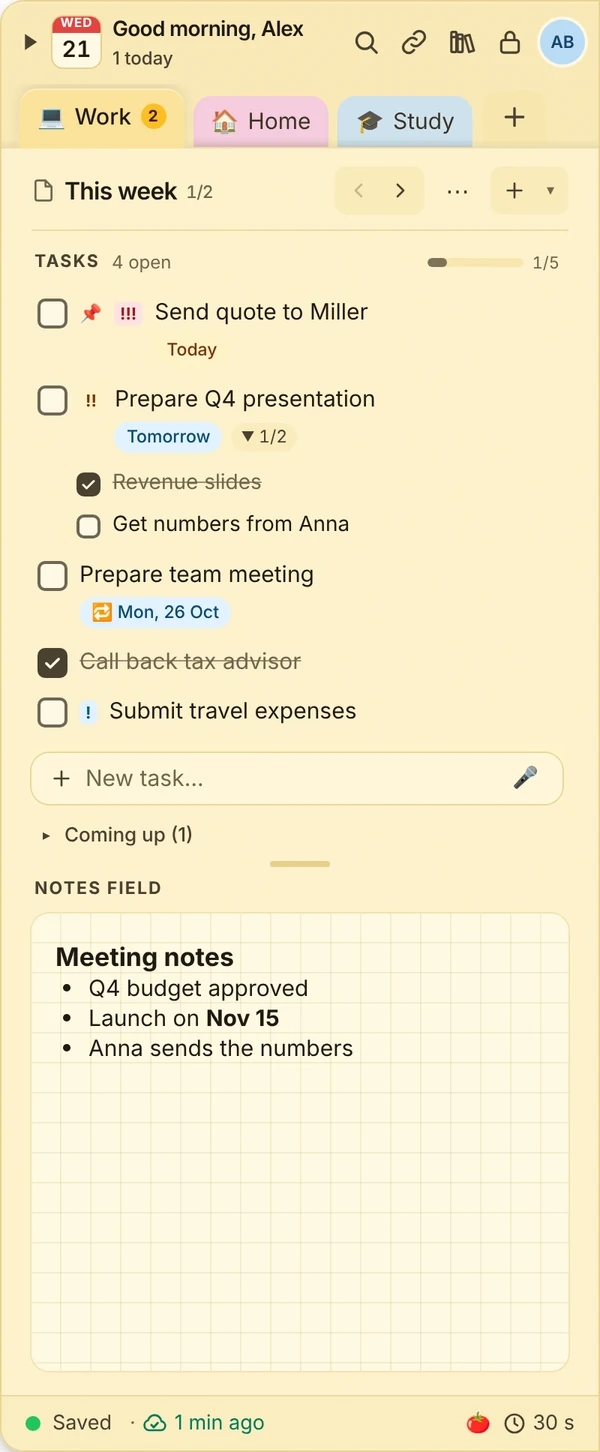
For notes that should stay visible on the desktop there are two simple ways: Sticky Notes, which come with Windows, or a notes app at the edge of your screen like JP Note.
- ✓ Free
- ✓ No account
- ✓ Windows · Mac · Linux
- ✓ Pro €9.99 once
In short
- Two ways to get notes on the Windows desktop
- With JP Note, notes and tasks stay together
- Keep order with one note per area of life
JP Note fits you if
- you want notes visible on your desktop
- notes often turn into tasks
- your desktop fills up quickly otherwise
Loose notes turn into one list
This is what many desktops look like. Press the button and watch JP Note turn it into one list with dates.
With Windows Sticky Notes
- 1Open the Start menu and type “Sticky Notes”.
- 2Open the app and create a new note with “+”.
- 3Write your text. The note stays on the desktop until you close it.
This is great for quick thoughts. For tasks with dates, reminders or many notes it quickly gets messy.
Type a task the way you would say it
JP Note picks up the date, time and repeat and shows them before saving. Try one of the examples or type your own.
Simplified preview. The app understands more, for example “by 31 Oct” or “every 2 weeks”.
With JP Note at the edge of your screen
- 1Download and install JP Note for free.
- 2Press Alt+N to open the dock at the edge of your screen.
- 3Type a task at the top, for example “Send quote Friday”, and write free notes below.
- 4Put a note on the desktop: drag it down out of the notes bar.
The dock then hides again. JP Note tells you about due tasks at the right time.
Tips for a tidy desktop
0 of 3 ticked off- One note per area of life, for example work and private.
- Only put the most important things on the desktop, the rest waits in the dock.
- Tidy up once a week: archive what is done instead of deleting it.
What this looks like day to day
- Note with today’s goals on the desktop
- Ticked off what is done, the note updates
- New task in the dock with a reminder
- Dragged the note back into the dock, desktop clear again

Frequently asked questions
Where do I find Sticky Notes in Windows 11?
In the Start menu under “Sticky Notes”. Depending on your Windows version they are also available in OneNote.
Can a note always stay on top?
With JP Note, yes: the dock sits above all windows and folds itself away so it does not get in the way.
Are desktop notes backed up?
JP Note automatically creates a backup on your device every day. With Pro, notes also sync encrypted with your other devices.
Related
Windows und Sticky Notes: trademarks of their respective owners. JP Note is not affiliated with them. Information about other apps to the best of our knowledge, as of October 2026.