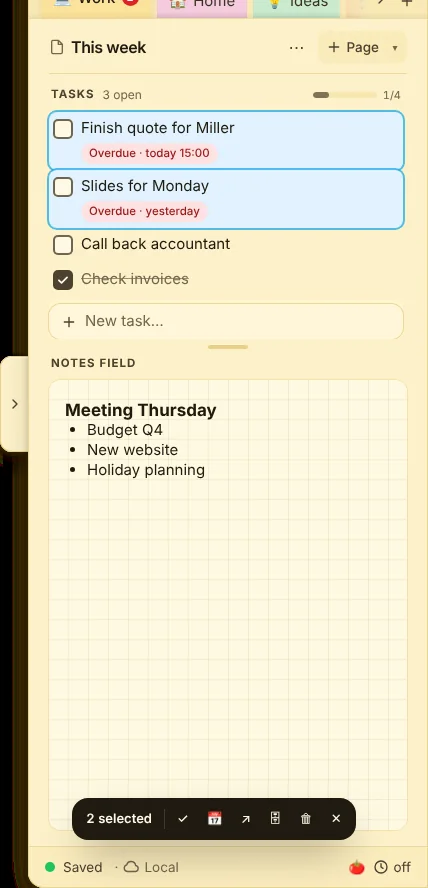
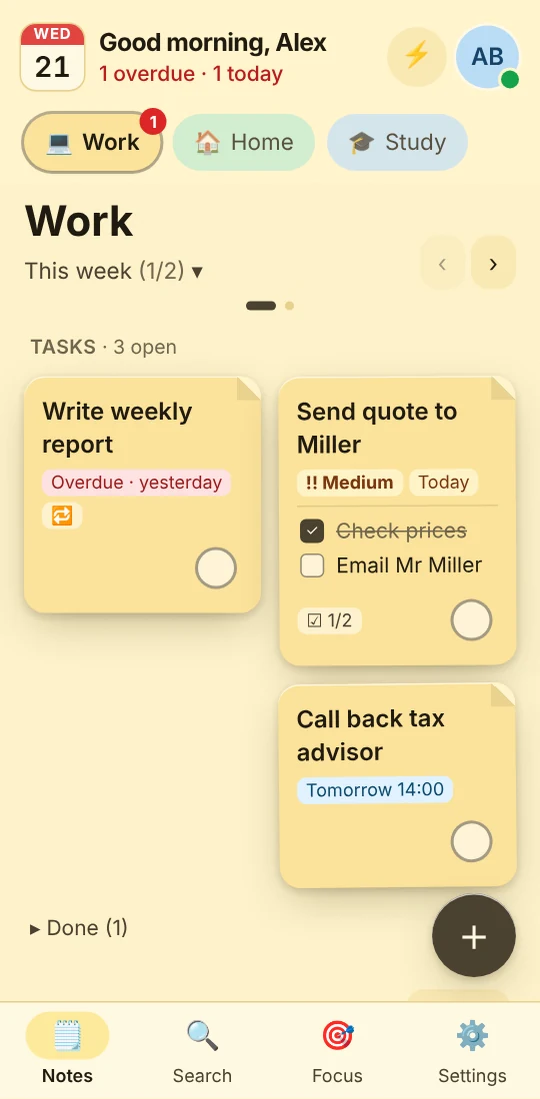
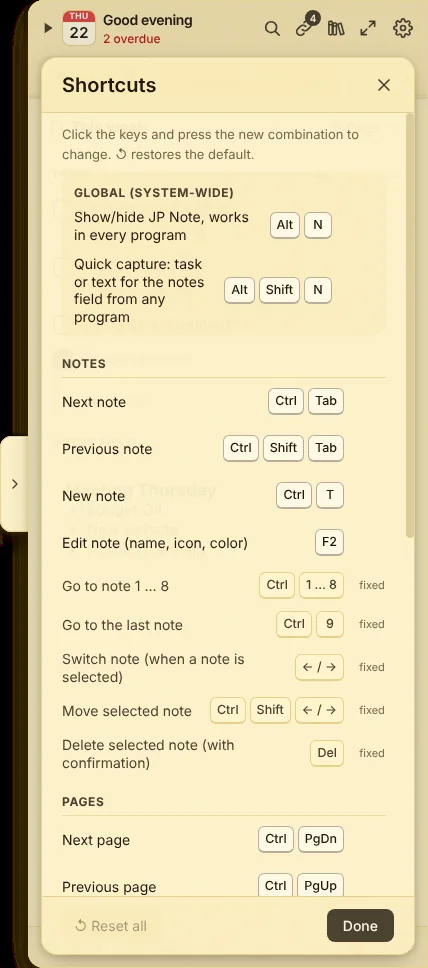
A note is a tab like in a binder, for example “Work”, “Home” or “Study”. Each note has pages, and every page has a task list at the top and a notes field below.
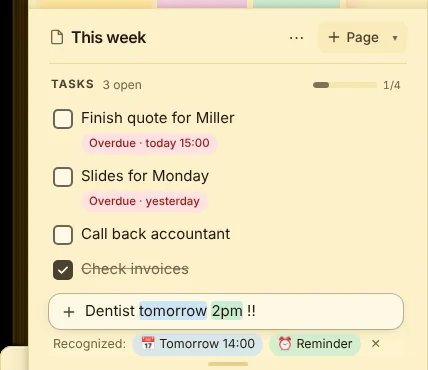
Just include date, time and repeat in the text. JP Note shows what it recognised before saving. One click discards the suggestion and your text stays exactly as typed.
+Dentist tomorrow 2pm→📅 tomorrow 14:00🔔 reminder
+Take out the bins every Monday !!→🔁 Mondays!! medium
Below the task list of every page is the notes field. Click into it or press Ctrl+E and start writing. Everything saves by itself, the footer shows “Saved”.
While you write, a toolbar appears above the notes field. When you select text, a small bar shows up right above it with bold, italic, underline, strikethrough, highlight and link.
Ctrl+BCtrl+ICtrl+U
Bold, italic, underline
Ctrl+Shift+S
Strikethrough
Ctrl+Shift+H
Highlight
Ctrl+Shift+8
Bullet list
Ctrl+Shift+7
Numbered list
Ctrl+Shift+9
Checklist
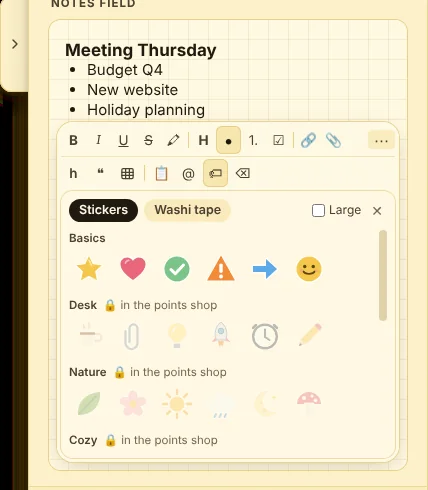
Behind ⋯ on the right of the toolbar (“More formatting”) you find subheading, quote, table, copy field, @ mentions, stickers, “remove formatting” and voice input 🎤.
When the cursor is in a table, an extra bar appears: “+ Row”, “+ Column”, delete row or column, header row on and off, delete table.
Paste a screenshot straight into the notes field with Ctrl+V. Drag files in or pick them with 📎 in the toolbar. An attachment can be up to 25 MB.
Click an image to open it large, zoom with + and −, and 0 fits it again. Right-click the image for “View large”, “Recognise text”, “Copy image”, “Open in default program”, “Save as …” and “Delete image”.
A copy field shows a label, for example “University link”, and copies the value behind it when clicked. That way the notes field shows a short name instead of a long address.
Press Ctrl+Shift+K or click 📋 under ⋯.
Enter a label and the value. For passwords and PINs tick “Hidden (password, PIN)”.
Click “Insert”. Double-click the field to change it later.
Type @ in the notes field followed by a few letters. JP Note suggests matching contacts and entries from your quick access. Pick with ↑ ↓, Enter inserts, Esc closes the list.
A + at the start of a word searches phone numbers only. The list only opens at the start of a word, so “2+2” or an email address does not trigger it.
Under ⋯ in the toolbar, 🏷 opens the picker. Click a sticker to place it at the cursor, “Large” makes it bigger. Washi tape works as a heading or divider, with your own label if you like.
Try it Pick a sticker or tape, then click on the note
Weekly planMonday: presentationWednesday: gymFriday: pizza with Lena
In the notes field: 🏷 opens stickers and washi tape
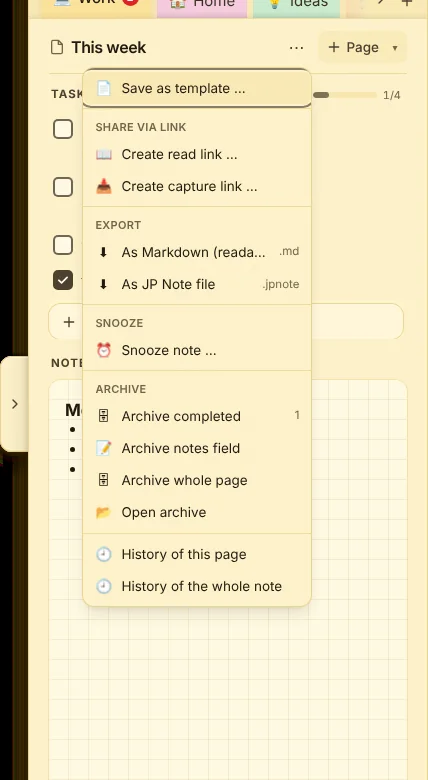
If you need a page again and again, say a packing list or meeting minutes, save it as a template: “Save as template …” in the page menu ⋯. Tasks and notes field are kept, without ticks and dates.
Create new pages from a template via “+ Page ▾”. There you find “My templates” and the built-in ones, in every note and on every device.
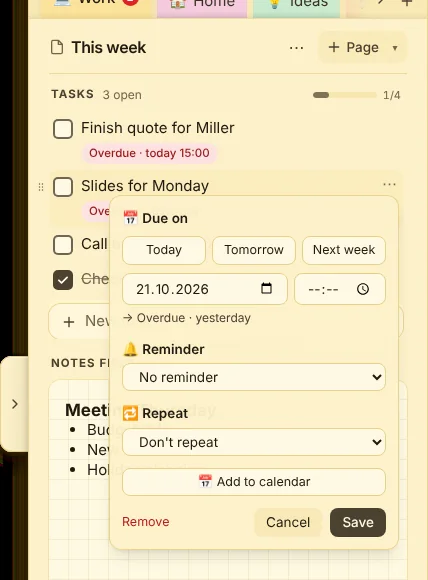
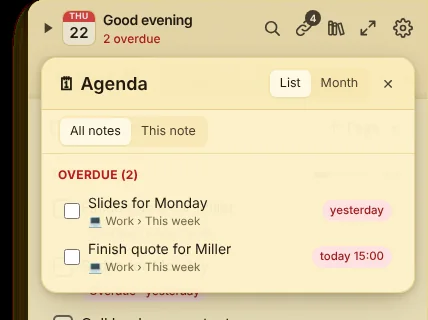
Ctrl+D opens “Dates and reminders”. The list sorts everything with a due date into Overdue, Today, Tomorrow, Next 7 days and Later. At the top pick “All notes” or “This note”.
Tick a task to finish it right here, click its text to jump to it. The calendar leaf at the top of the dock also shows what is due today and what is overdue.
At the top of the dates view switch between “List” and “Month”. The month shows each day with its tasks, the arrows page through. Future dates of repeating tasks are included too.
At a due time you get a notification on your PC and a banner in the dock. Tick it off with “✓ Done” there, or push it under “Later:” by 10 minutes, 1 hour or to tomorrow 9:00.
On your phone the reminder arrives as a push, even when the app is closed. This needs Pro or the trial and allowed notifications.
During a focus round with “Do not disturb” reminders wait until the round ends.
Switch the sound under Settings → Focus & sounds → Sounds.
Snooze a page or a whole note you do not need right now until a set time. It disappears until then and comes back with a notification on your PC and a push on your phone.
In the page menu ⋯ under “Snooze”, click “Snooze page …” or “Snooze note …”.
Pick “Tomorrow morning” or a custom time, with a note if you like.
“View snoozed” in the same menu lists everything. Bring something back early there with “↩ Bring back now”.
05Chapter 5
🔗 Quick access
Open or copy links, numbers, addresses and IBANs in one click.
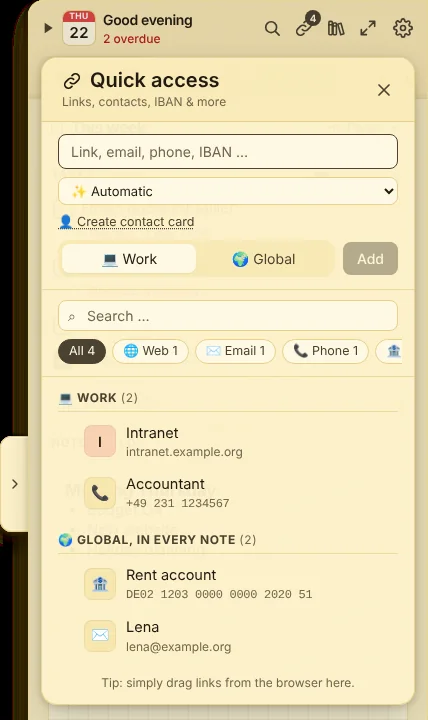
Ctrl+L or 🔗 opens quick access. With “+ Add entry” you add a link, email address, phone number, IBAN, address, folder or text. JP Note detects the type, but you can change it.
For a person with several numbers and an address use “👤 New contact card”.
Just drag links from your browser into quick access.
An IBAN is checked. If the check digit or length is wrong, JP Note warns you.
Quick access with entries for this note and global ones
One click opens or copies, depending on the type. The tooltip shows what will happen. Links open in the browser. The entry menu also offers call, open in Google Maps, copy, edit, move and delete.
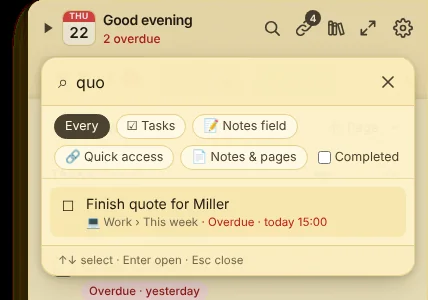
The search field at the top and the type filter find the right one even with many entries. In the notes field insert entries with @.
An entry either belongs to one note or is global and visible in every note. If you add something that already exists in another note, JP Note asks whether to create it as a global entry. Duplicate entries can be merged into one global entry.
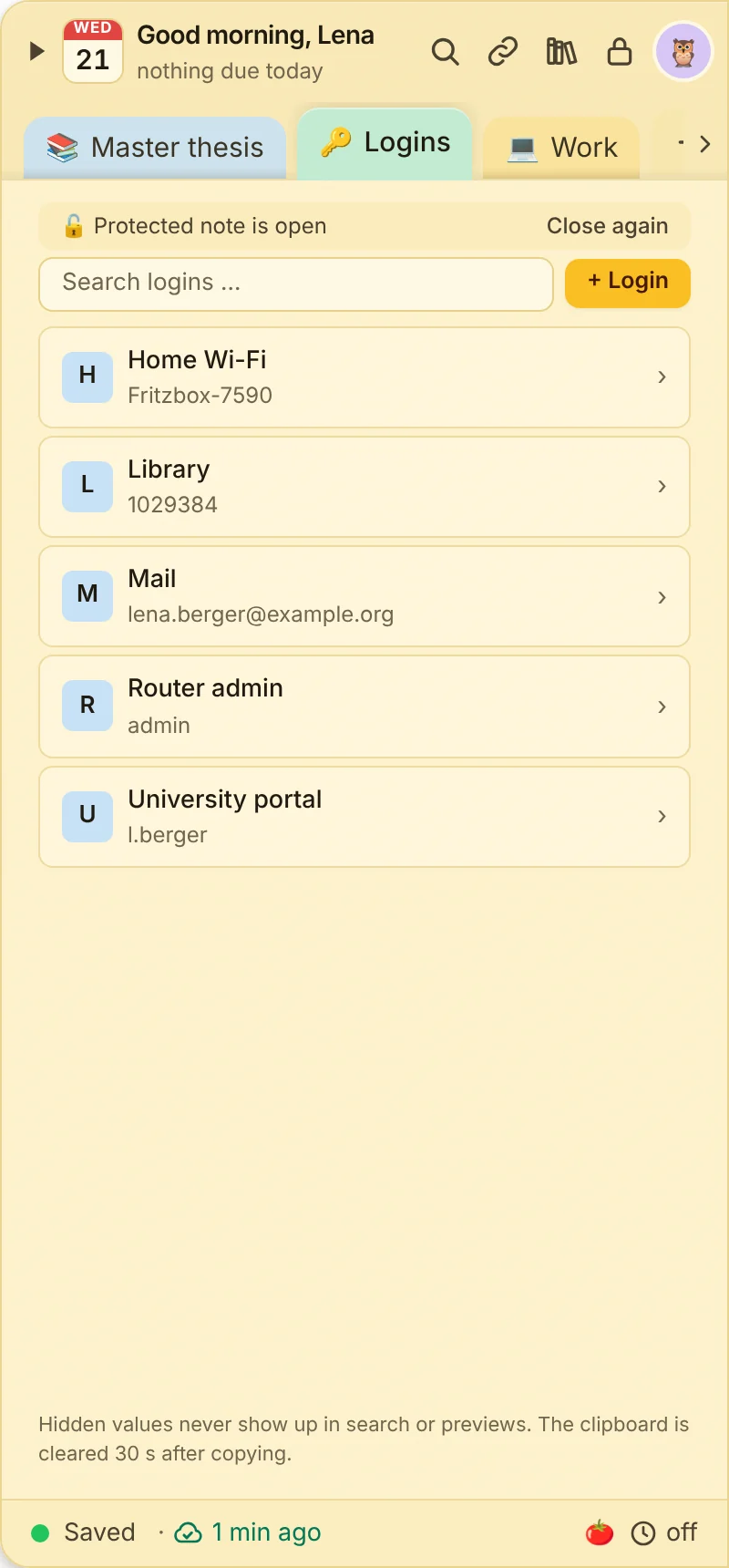
For Wi-Fi, router, university portal and other logins there is a dedicated note type. Every login has copy fields, the password stays hidden.
Set up password protection first: Settings → Sync & security → Password protection. Without it you cannot create a password note.
Create a new note and choose “Passwords” under “Note type”.
Click “+ Login”. Enter name, user and password, plus login page, recovery codes and notes if you like. “Generate a strong password” creates one with 20 characters.
Click a field to copy its value, double-click to change it. The clipboard is cleared after 30 seconds. Hidden values never show up in search or previews.
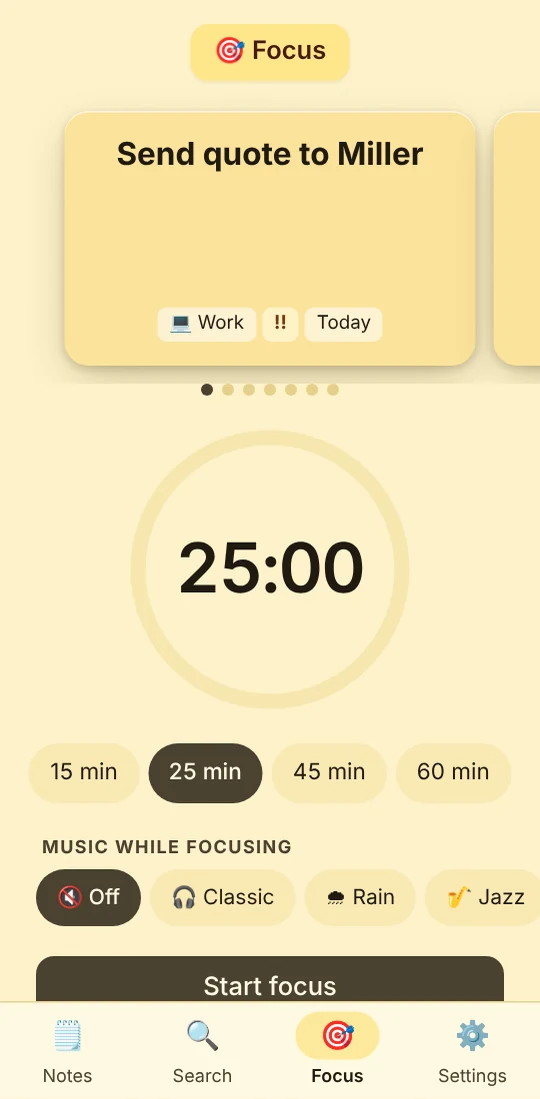
Pick a length: Pomodoro 25 minutes, Long focus 50 minutes or Short sprint 15 minutes. The same menu also starts a short break (5 minutes) or a long break (15 minutes).
With the zen garden you then pick a seed, see below.
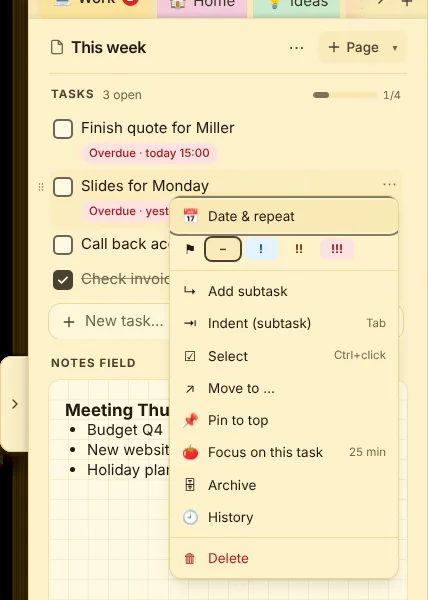
For a specific task: “Focus on this task” in the task’s ⋯ menu. After the round you can mark it done right away.
During the round you can pause, add five minutes with +5 or end the timer. When the dock is folded away, a mini timer keeps running at the screen edge, and you can move it.
Do not disturb
Collects reminders and shows them after the round.
Zen mode
Shows only the current page during focus time.
Automatic breaks
5 minutes, 15 minutes after every 4th round.
Switch all of this under Settings → Focus & sounds → Focus timer. On a Mac, “Switch Mac Focus too” can run the shortcuts “JP Note Fokus an” and “JP Note Fokus aus”, which you create in the Shortcuts app.
During the round a plant grows above the focus bar. After the round it moves into the garden of the month. Every month a new garden starts with 60 spots. Each plant adds something, from stepping stones to lantern and bridge up to the tea house. Earlier months are in the garden book.
The length of the round decides the size: under 20 minutes a small tree, 20 to 45 minutes a medium one, from 46 minutes a large one. If you end a round early after at least one minute, a small stone stays. It does not count as a finished round.
Open the garden from the 🍅 menu with “Zen garden”. At the top you find “This month”, “Garden book”, “Goals” and “Workshop”. Click a plant to water it, click the sand to rake it.
A full zen garden in the evening
“Share garden” turns your garden into an image as a post (4:5), story (9:16) or square (1:1). On the PC also as a time-lapse GIF. Only the image is shared, no tasks or notes. More pictures on the zen garden page.
Before each round the seed box opens. Pick a seed or click “Surprise me”. You see which tree it is once it is half grown.
With Pro your box holds two random trees per size, six in total. All 16 trees and surprise seeds are in the points shop. If you have no seed of a size yet, a random tree grows.
How many rounds on which days. Each day you reach adds a stepping stone to the week’s path. If you like, a quiet hint comes in the evening when a round is missing.
Weekly goal
Focus hours per week. If you make it, the lantern glows all next week.
Project tree
For a big plan like a thesis, with a target in hours and an optional date. It grows with every round you assign to it and turns golden at the goal.
Choose which project a round counts for in the 🍅 menu under “Count rounds for”.
In the workshop you design your own trees on the PC: growth, leaves, colours, bark, blossoms, fruit, size and lean. “Submit as a suggestion” sends the design to us, with a sentence of description and up to three pictures.
During focus time JP Note can play calm music. It is created in the app itself, without internet and without ads. There are six styles: Focus, Rain, Jazz, Ambient, Night and Energy.
🎵 in the focus bar turns the music on. A click switches to the next style, hover to change the volume.
Under Settings → Focus & sounds → Lo-fi music choose “With beat”, “Ambient sounds” and a separate style “During breaks”.
With “Rain” it also rains in the garden, with “Night” it turns night.
The note now sits on your screen as its own sheet, with tasks, notes field and quick access. Dragging sideways moves the note within the dock instead of tearing it off.
Drag the sheet anywhere onto the dock and let go. Or click “Back to the dock” on the sheet or “↩ To dock” in the list in the dock. The note is back in its place.
On your PC: Settings → Sync & security → Cloud sync → “+ Add device”. A QR code appears.
Scan the QR code with your phone camera. app.jpnote.de opens.
Check that it is your account and tap “Yes, that is my account”.
On Android install from the browser menu with “Install app” or “Add to Home screen”. Allow notifications on first launch, otherwise no reminders arrive.
To connect a second PC or Mac: copy the link under “+ Add device” on the first device, paste it under “Pair with link” on the new one, then enter your JP Note password. Or choose “I have an account” on the new device and sign in with the code from the email and your password.
The phone app is the same as the web app in the browser. Viewing and editing notes and tasks, due dates, repeats, search, quick access, focus timer, voice input via 🎤 and app lock with PIN, Face ID or fingerprint all work there too.
Only on the computer do you get the dock at the edge, system-wide shortcuts and tear-off notes. On the phone you can view images, and a tap copies a copy field.
On a laptop or tablet app.jpnote.de shows a wide layout with sidebar, week and month view and shortcuts. Ctrl+K searches.
Settings → Account & plan → Plan & devices lists every device with its last use, the storage used and whether push is on for a phone. Take out an old device there with “Remove”. It can no longer sync, its data stays on it.
If you hit the limit, JP Note offers to replace an old device right when you sign in, with a note on whether its notes are backed up.
Take a PC out of sync under Settings → Sync & security → Cloud sync with “Disconnect device”. The notes here and in the mailbox are kept.
Everything is saved on your device first. Without internet you keep working as usual, the footer shows “Offline”. As soon as the connection is back, your changes go up.
If two devices change the same spot offline, no version is lost. The older one goes into the history.
If a device was offline for a long time and something was deleted elsewhere meanwhile, JP Note asks whether to keep the entries or move them to the trash. Sync waits until you decide.
If the device clock is wrong, JP Note warns you. Set date and time automatically, otherwise simultaneous changes may be merged incorrectly.
Double-click or right-click the note at the top of the dock, or press F2. “Edit note” opens.
Under “👥 Share note with someone” enter the person’s email address and choose “can edit” or “read only”.
Click “Share and invite”. The person sees the invitation the next time they open JP Note and accepts or declines.
In the same place you can later change the permission, remove a person or click “End sharing”. Invited people can leave the note and keep their own copy.
A read link shows a page with tasks and notes field in the browser, protected by a password. Whoever opens the link needs no account.
Open the page menu ⋯ on the page, then “Share via link” → “Create read link …”. Or Settings → Share links.
Keep the suggested link password or set your own. It is not your JP Note password.
Pick how long it is valid and click “Create link”. Copy link and password and ideally send them separately, for example the link by email and the password by messenger.
The link shows the state at the time you created it. If you changed the page, “↻ Refresh” under Settings → Share links uploads the new state.
With a capture link others add something, no account needed. Create it in the page menu ⋯ with “Share via link” → “Create capture link …” and add a title and, if you like, a hint for guests.
📋 Sign-up list
Everyone with the link sees who added what. Good for parties, bring lists and dates.
📥 Only me
Only you see the entries. They arrive as suggestions, and “Add as task” puts them on your list.
See the entries under Settings → Share links in “Active links”. You can also end a link early there.
Open Settings → Account & plan. The “✉️ Mail to JP Note” card appears once your subscription is active.
Choose the kind of address: “With spam protection” (recommended) or “Without spam protection” with a name you choose.
Click “Create address” and copy it into your mail app with “Copy”, ideally as a contact.
🛡️ With spam protection
Your name and 8 random characters, for example [email protected]. It looks cryptic on purpose: spammers try common names by the thousands. They will not find an address with a random part, it only reaches you if you hand it out yourself.
✏️ Without spam protection
Your choice, such as [email protected]. Easy to remember, but also easier to guess, so you may get more spam. In case of abuse, such as sending spam, harassment or signing up in someone else’s name, we turn the address off. After that the account can only use an address with spam protection.
Under “Change address” you switch to a new address, the old one stops accepting mail. “Turn off” stops receiving altogether and works any time.
New mails appear at the top of the dock and the web app as a blue notice with their count. The envelope in the dock header shows how many mails are waiting and opens the inbox.
Open the page where the mail should go. The inbox shows “Adds to: note › page” at the top.
Expand the mail and choose “As a task”: the subject becomes a task on this page. Attachments go into the notes field of the same page, with subject and sender above them, so nothing gets lost.
Or “As new page”: subject as title, sender, date, text and attachments in the notes field of a new page.
If a calendar invitation (ICS) is attached, the inbox shows the date and time. “As a task with date” creates a task due at exactly that time, with the location in brackets. The time is converted to your device’s time zone.
Taken over or deleted mails disappear from the inbox.
These attachments come along, up to 25 MB per mail:
🖼️ Images
JPG, PNG, GIF and WebP appear large in the notes field. HEIC photos from iPhone come as a file to open, because not every device can display them.
📄 PDF
As a file to open.
📝 Text, CSV, contacts, dates
TXT, Markdown, CSV, VCF and ICS, only if the content really is plain text. A web page disguised as text stays out.
📊 Word, Excel, PowerPoint
DOCX, XLSX and PPTX without macros. Files with macros, ActiveX, embedded objects or a template from the internet stay out, as do the old formats DOC, XLS and PPT.
We detect the file type from its content, not its name. A file called “holiday.jpg” that is really a program stays out. Programs, scripts, archives such as ZIP, web pages and SVG graphics are never taken over for security reasons. In the inbox they are crossed out so you know they existed. Taken-over attachments then count towards your storage like your own attachments.
Under Settings → Sync & security → Password protection you encrypt all notes, tasks and quick access entries with AES-256, on the device and in the cloud mailbox. It is required for sync and the phone.
Ask for the password at startup: the strongest protection. Without it your Windows or Mac account protects the key, and no password is needed at startup.
Lock automatically: never, after 5, 15 or 30 minutes or after 1 hour. Lock right away with Ctrl+Shift+L.
Quick unlock: with a PIN, Windows Hello or Touch ID. Applies to this device only. After 5 wrong PINs and every 14 days JP Note asks for the password once.
Protect single notes on top, for example private things on a work computer. Their content only shows after your password, PIN, Windows Hello, Touch ID or fingerprint.
Set up password protection, see above.
Edit the note with a double-click or F2 and switch on “🔒 Protect with password”.
JP Note keeps earlier versions of the notes field, titles and tasks. This is how to get them back:
“History of this page” or “History of the whole note” in the page menu ⋯.
“History” in a task’s ⋯ menu.
Everything at a glance under Settings → Data & backups → History & conflicts.
Green marks what comes back, red what goes. “Restore” brings that version back, the current one stays in the history. “Notes field as of yesterday” resets the notes field to last night, “State as of …” to a time you choose.
“Conflicts” lists versions that were changed on another device at the same time. Use “View” to compare and bring them back in one click.
The page menu ⋯: template, links, export, archive and history
Archive: In the page menu ⋯ tidy up with “Archive completed”, “Archive notes field” or “Archive whole page” without deleting anything. Archive a whole note under “Edit note”. “Open archive” shows everything, and “Restore” brings it back.
Done tasks can move to the archive by themselves after 1, 7 or 30 days: Settings → Tasks → Archive completed.
Trash: Deleted notes, pages, tasks and logins first go to Settings → Data & backups → Trash. Bring them back there with “Restore”.
JP Note backs up automatically once a day. Settings → Data & backups → Backups also has “Back up now” and “Open folder”. The files are encrypted with your password just like the notes.
Expand “Restore”.
Pick the version you want and confirm.
JP Note first backs up the current state, so you can always go back. The restored state then applies on all your devices.
Under Settings → Data & backups → Export & import, “Export all ▾” saves a JP Note file (to restore or pass on) or Markdown (readable, for example for Word or Notion). This works for free too.
Export a single page under “Export” in the page menu ⋯, a whole note under “Edit note”. On the phone there is also “Print or save as PDF”.
“Import …” reads JP Note files, Google Keep (Takeout as ZIP), Todoist and Outlook (CSV), Markdown and text. From Microsoft To Do copy the list and use “Paste text”. Imports are always added, nothing is overwritten.
12Chapter 12
📚 References
Collect and cite sources for your studies and thesis.
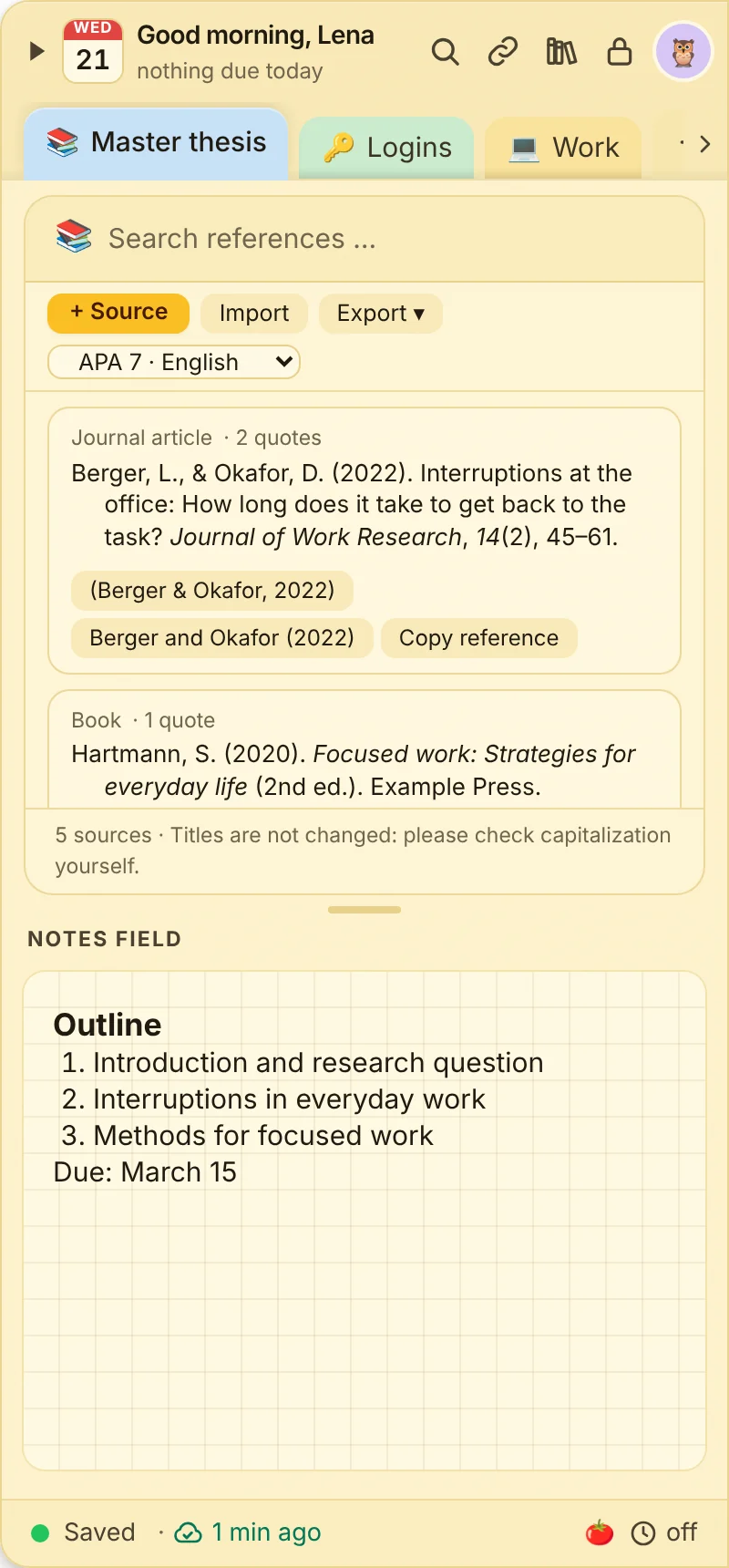
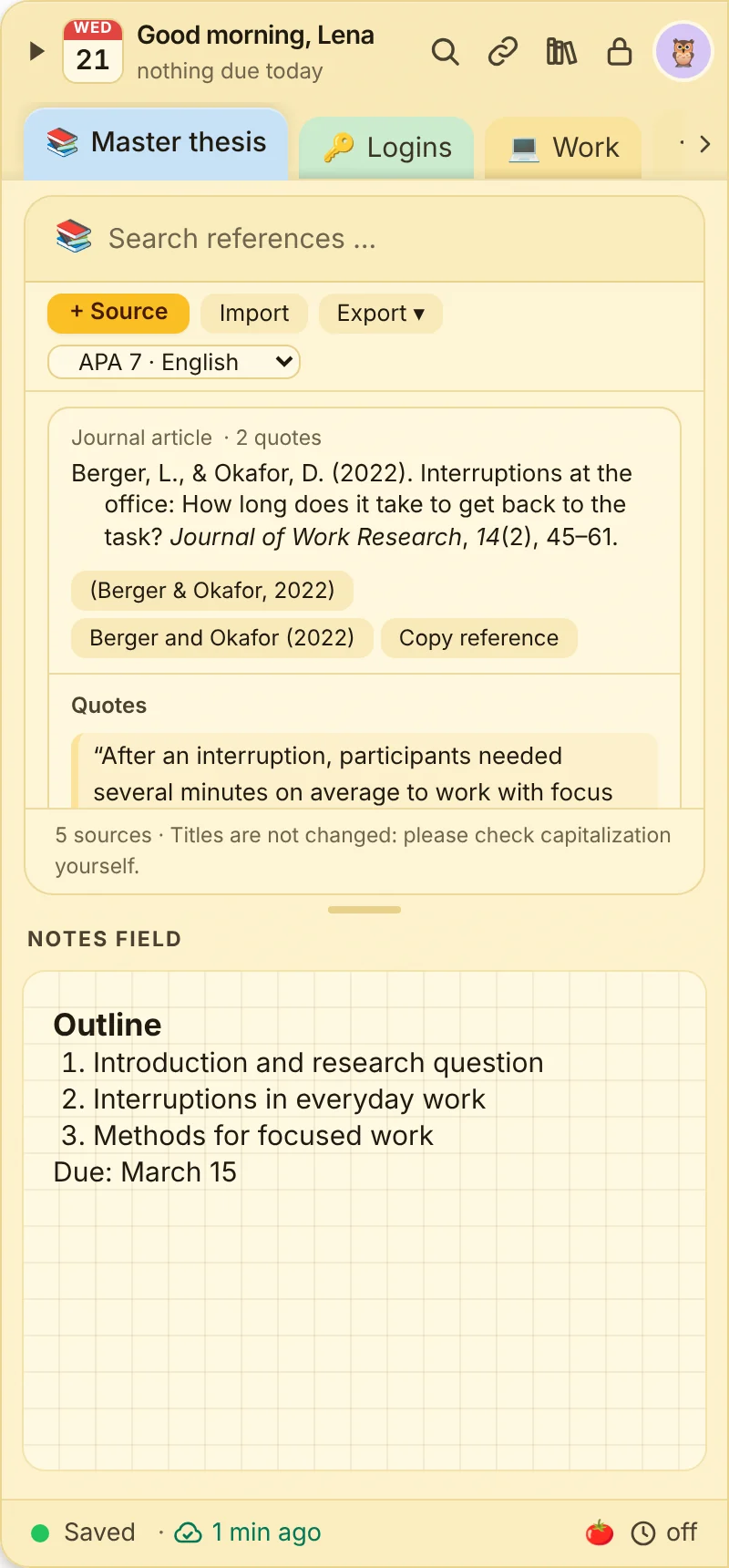
Create a new note with “+” or Ctrl+T and choose “References” under “Note type”. A references note collects the sources for one project, for example a term paper, plus a notes field for outline and open points.
Enter the DOI, for example 10.1037/ppm0000185, and click “Fetch”.
Authors, title, journal and pages are filled in. Check briefly and save.
Without a DOI pick the type, such as journal article, book, book chapter, web page, report or thesis, and fill in the fields yourself. If something is missing for a complete reference, it says so right at the source.
“Export ▾” offers BibTeX (.bib) for Zotero and LaTeX, RIS (.ris) for Citavi and EndNote, and the reference list as text. “Copy reference list” puts it on the clipboard with italics.
The other way round, “Import” brings in your sources from a BibTeX or RIS file. Duplicates and sources without a title are skipped.
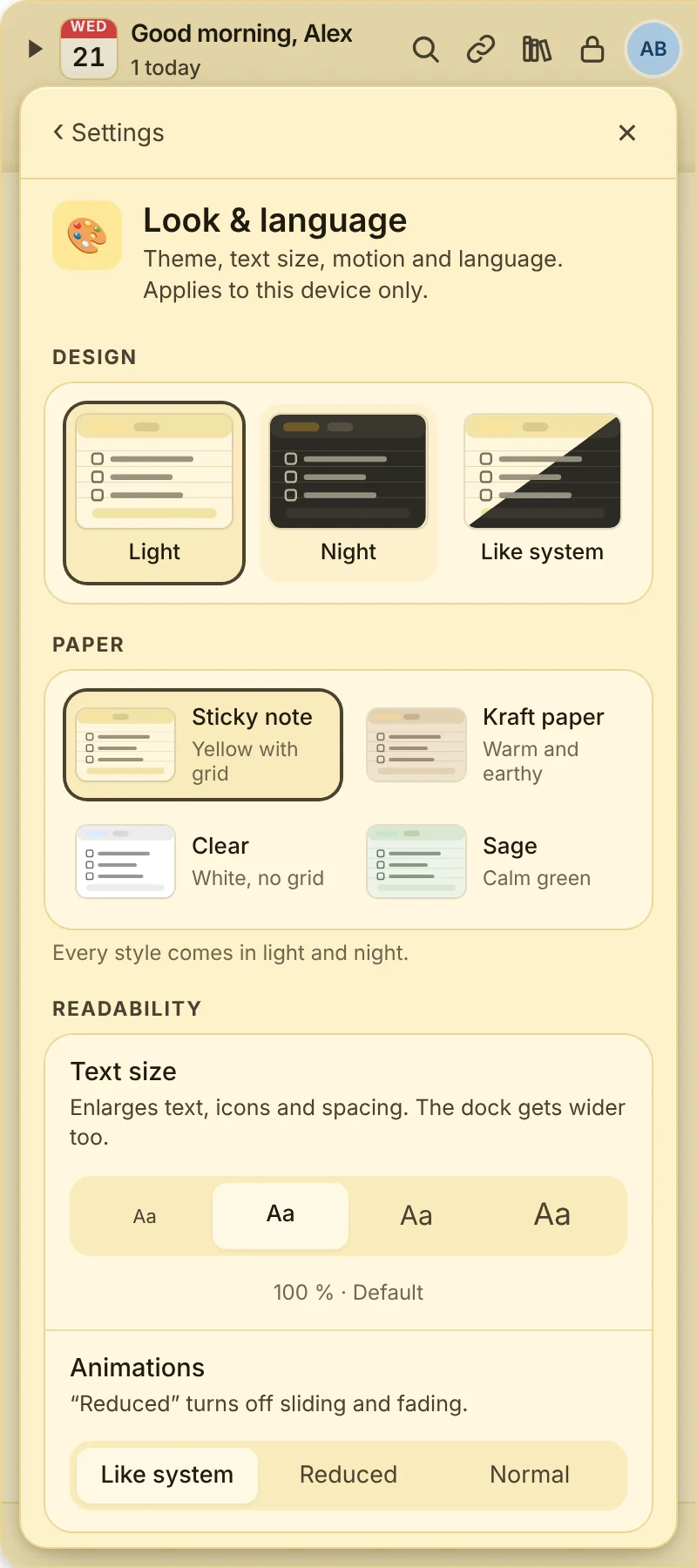
Settings → Points shop shows your points and everything you can redeem: colours, papers, trees and decorations for the zen garden, check-off effects and sounds, profile frames, lo-fi styles, sticker packs, washi tape and surprise packs. On the phone it is in the settings too.
Every item with prices and pictures is on the points shop page.
“View” shows a design on your dock until you end the preview. Nothing is bought until you redeem it.
What you redeem is yours on every device with your account, light and night.
A surprise pack always brings something you do not have yet.
Anyone who buys Pro picks one item from the shop as a thank you, no points needed.
100 points for every purchase through your link, up to 50 purchases a year.
Starter tasks
One time only, 100 points in total.
Quiz
5 points per correct answer, in the web app from day 14 with an account.
Anniversary
50 points on your account anniversary.
Bug reports
Points for your first confirmed bug report.
How to recommend JP Note:
Settings → Account & plan → “🎁 Recommend JP Note”.
“Copy link” or “Copy text to share” and send it, for example by messenger. We do not send invitation emails ourselves.
Anyone who comes through your link tries it for 14 instead of 7 days. If they buy JP Note, you get 100 points.
The starter tasks: confirm your email address, finish the tour, add your first task with a time, pair a phone or second device, do your first focus round, tear off your first note, save your recovery key and answer a short survey after 14 days.
Quiz: In the web app JP Note asks about its own features, from day 14 with an account. Each question counts only once, a wrong answer too. On very busy days the quiz takes a short break.
Once all starter tasks are done, the points shop congratulates you once and shows how many points they earned. After that the list disappears.
Pick something in the points shop and try it with “View” if you like.
Click “Redeem” and confirm. The points are deducted and the item is yours.
Give Pro
1,500 points. You get a voucher code that makes Pro cost €0 at checkout. Redeem it on the buy page under “Add promotion code”. Each code works once and is also listed under “Your vouchers”.
1 month subscription
600 points. With a running subscription the next payment moves back by a month, otherwise it applies for 30 days.
14Chapter 14
⚙️ Settings
Where to find things, and how to help support quickly.
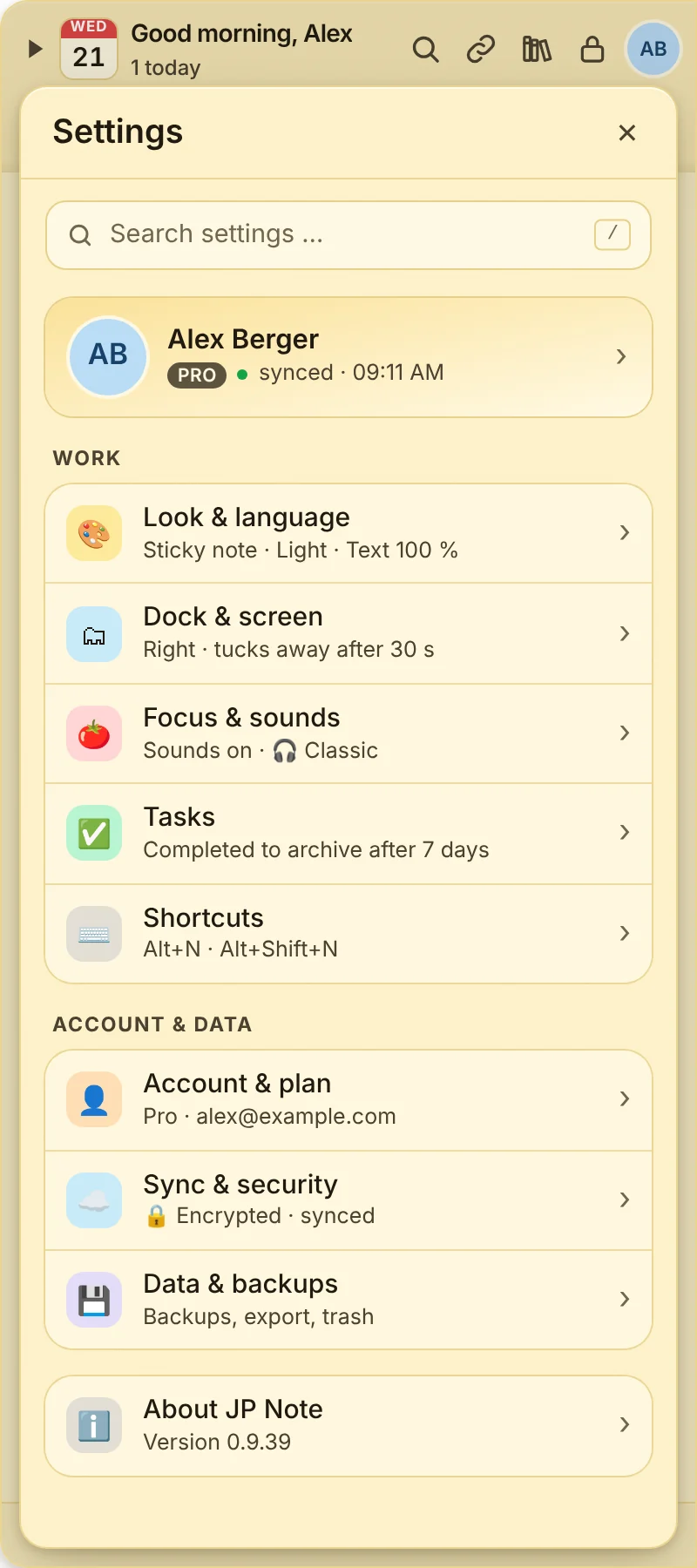
Click your profile picture at the top of the dock. Each section shows its current state on the start page. Changes apply instantly, there is no save button. / or Ctrl+F finds any setting, also with words like “dark” or “password”. Esc goes back one level.
Enter the license code from your purchase email under Settings → Account & plan → License (JPN-XXXX-XXXX-XXXX) and click “Activate”. Case and spaces do not matter.
 JP Note