Download JP Note for free
For Windows, macOS, Linux and ChromeOS, plus the phone app from your browser. For the first 7 days you can try every Pro feature, updates arrive automatically.
Ready in four steps
- DownloadThe file for your system
- InstallDouble-click, no account needed
- Open the dockAlt + N shows and hides it
- Try ProSettings → Account, 7 days, no payment details

You are on your phone right now. Install JP Note on your PC, Mac or Chromebook first. You then connect the phone app to your account with a QR code.
Lots of new users are arriving right now. The download works as usual, and JP Note runs without an account too. New accounts for sync and the phone app go through a short waiting list: you get an email as soon as it is your turn.
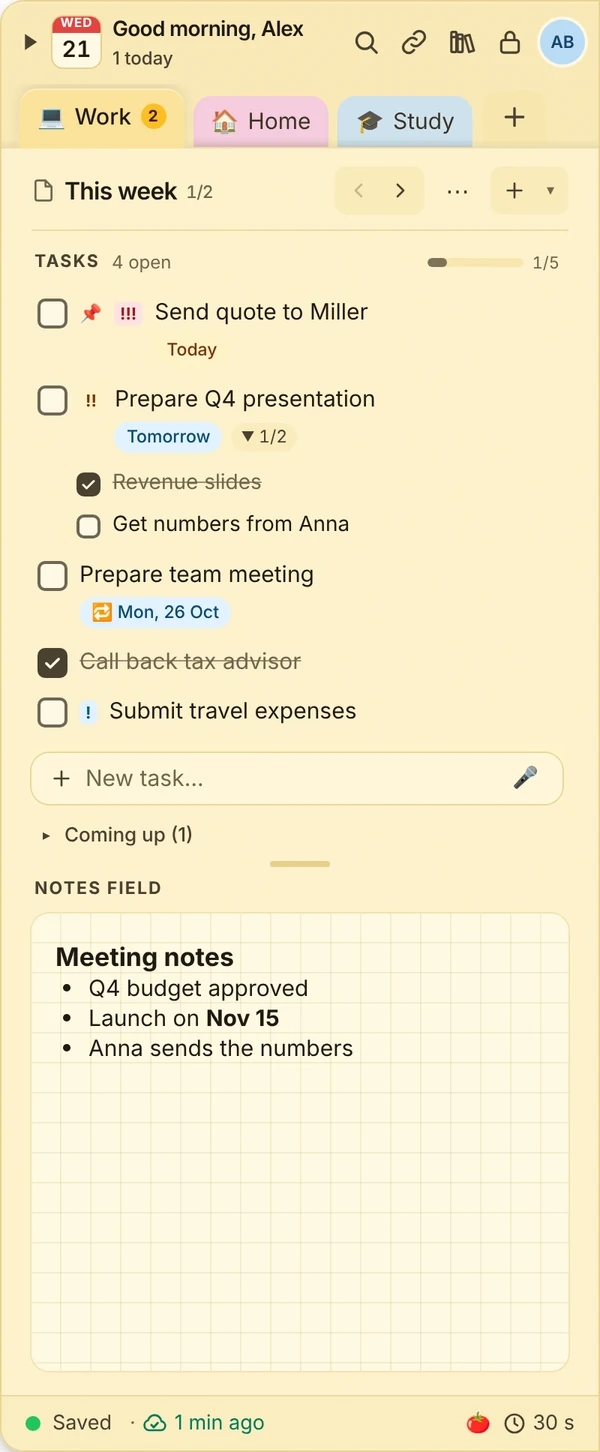
Windows
- Windows 10 and 11 (64-bit)
- One-click updates in the app
Installation guideStep by step with picturesHow to start JP Note on Windows
JP Note is new and not yet registered (signed) with Microsoft. The warning only means that Microsoft does not know the publisher yet, not that the file is harmful. Only download JP Note from this page. You will find the checksums below.
- If your browser says the file “isn’t commonly downloaded”: click … and then Keep.
- Open the file. Windows shows a blue notice. Click More info there.
- Run anyway now appears. Click it and the installation starts.
Simplified illustration. Depending on the version, the windows may look slightly different.
More optionsVariants and tips
- Portable: no installation, e.g. from a USB stick. Data lives in the “JP Note Daten” folder next to the file.
- Uninstall: Settings → Apps → JP Note. Your data is kept.
macOS
- Apple silicon and Intel (one file for both)
- macOS 12 or later
Installation guideStep by step with picturesHow to open JP Note on a Mac
JP Note is new and not yet registered (signed) with Apple. The warning only means that Apple does not know the publisher yet, not that the file is harmful. Only download JP Note from this page. You will find the checksums below.
- Open the .dmg and drag JP Note into Applications.
- Start JP Note. macOS says it could not verify the app. Close it with Done.
- Open System Settings → Privacy & Security, scroll down and click Open Anyway next to JP Note. Confirm with your password.
- Start JP Note again and choose Open. From then on it starts without asking.
Simplified illustration. Depending on the version, the windows may look slightly different.
More optionsVariants and tips
- Autostart: only works when JP Note is in “Applications”.
- Shortcut: Ctrl+Option+N shows and hides.
Linux
- AppImage for most distributions (x64)
- Updates itself
Installation guideStep by step with picturesHow to start the AppImage
- Right-click the file → Properties → turn on “Run as program”. Or in a terminal:
chmod +x JP-Note-Linux.AppImage - Double-click starts JP Note. If
libfuse2is missing, the system says so on launch. Install the package (Ubuntu:sudo apt install libfuse2t64).
More optionsVariants and tips
- Wayland: runs via XWayland so the dock stays at the edge.
- Debian/Ubuntu: you can also use the .deb from the ChromeOS card.
ChromeOS Beta
- Settings → About ChromeOS → Developers → turn on the Linux development environment
- Download the file, double-click it in “Files” → Install
Installation guideStep by step with picturesHow to install JP Note on a Chromebook
- The Linux development environment must be on (Settings → About ChromeOS → Developers).
- Double-click the .deb in the Files app → Install.
- You will then find JP Note in the launcher under “Linux apps”.
More optionsVariants and tips
- Which file? Most Chromebooks use Intel or AMD. If installation fails, use ARM.
- Tip: pin JP Note to the shelf. Global shortcuts work while a Linux window is active.
- Without Linux: use the phone app in the browser.
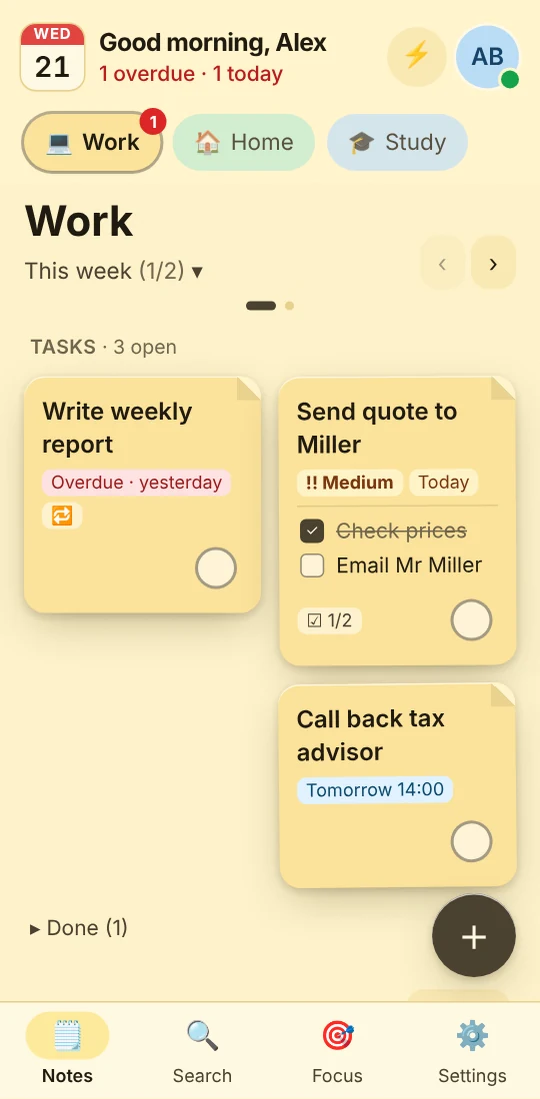
Android & iPhone
- No app store, straight from the browser
- iPhone (Safari) and Android (Chrome)
- Part of Pro and the trial
Installation guideStep by step with picturesHow to install the phone app
The phone app runs in the browser and is installed on your home screen without an app store. It then starts like a normal app, with its own icon and push reminders.
 On a computer? Scan the code with your phone camera and continue on your phone.
🍎 iPhone (Safari)
- Open app.jpnote.de in Safari and tap Share. Depending on your iOS version, Share is in the ⋯ menu.
- Scroll down and choose Add to Home Screen.
- Confirm with Add. JP Note is now on your home screen. On iPhone, push reminders only work from this installed app.
🤖 Android (Chrome)
- Open app.jpnote.de in Chrome, tap ⋮ at the top right, then Install app. On some devices it is called “Add to Home screen”.
- Confirm with Install.
Pairing: on your PC open Settings → Sync → “Add device” and scan the QR code with the phone app.
Simplified illustration. Depending on the version, the windows may look slightly different.
More optionsVariants and tips
- Pairing: on your PC go to Settings → Sync → “Add device” and scan the QR code.
- Push reminders: allow them on first launch. On iPhone only from the installed app.
- What works on the phone? The overview shows what is computer-only.
Only download the original
The files live in the official release repository on GitHub. Only download JP Note via this page. To be sure, compare the file’s checksum with the checksum list.
certutil -hashfile JP-Note-Setup.exe SHA256shasum -a 256 filename